So you have bought a new pc or laptop or you have installed a fresh windows, the next step would be installing essential or basic softwares which help you to increase your computer day-to-day experience. Today I am going to list down ten basic softwares, you will need for your work....
1. Updated drivers
The first most important thing are the drivers. Download all the updated drivers from online to go further... There are some software available which helps you to update all the drivers like devicedoctor or drivermax
2. Internet Browser.
Now after downloading all drivers the next is the internet explorer or any other browser to experience the internet world. I suggest to download google chrome because it is faster than others.
Download for free: Internet explorer, Google chrome
Showing posts with label Computer. Show all posts
Friday, 6 January 2012
Tuesday, 27 December 2011
Use your USB as a RAM
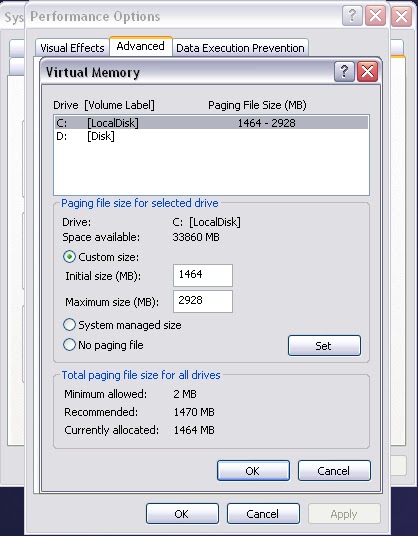
Make faster your pc by connecting your USB drive. Just follow these simple steps:
1. Connect your USB to your PC (it must be of 2Gb or more)
2. Now right click on "my computer" to open system properties dialog
3. Now go to advanced tab
4. Under performance section click "settings".
5. A performance properties open, now go to advanced tab.
6. Under virtual memory section click on "change"
7. Now virtual memory will open select your USB drive then check custom size
8. Check the space available on your drive and enter the same in initial and maximum size.
9. Now click OK and restart your PC.
Important: Don't disconnect the USB, if you want to disconnect undo all the above steps
1. Connect your USB to your PC (it must be of 2Gb or more)
2. Now right click on "my computer" to open system properties dialog
3. Now go to advanced tab
4. Under performance section click "settings".
5. A performance properties open, now go to advanced tab.
6. Under virtual memory section click on "change"
7. Now virtual memory will open select your USB drive then check custom size
8. Check the space available on your drive and enter the same in initial and maximum size.
9. Now click OK and restart your PC.
Important: Don't disconnect the USB, if you want to disconnect undo all the above steps
Labels:
Computer
Speed up your work with keyboard shortcuts
Easy way to speed up your work is to learn keyboard shortcuts. Following are some basic windows shortcut keys which help you to work efficiently.
KEYS
|
FUNCTION
|
| CTRL + C | copy |
| CTRL + X | cut |
| CTRL + f | find |
| CTRL + V | paste |
| WIN Key+D | Show the desktop |
| WIN Key | Display or hide the Start menu |
| WIN Key+BREAK | Display the System Properties dialog box |
| WIN Key+M | Minimize all windows. |
| WIN Key+Shift+M | Restores minimized windows. |
| WIN Key+E | Open My Computer |
| WIN Key+F | Search for a file or folder |
| CTRL+WIN Key+F | Search for computers |
| WIN Key+F1 | Display Windows Help |
| WIN Key+ L | Lock your computer if you are connected to a network domain, or switch users if you are not connected to a network domain |
| WIN Key+R | Open the Run dialog box |
| WIN Key+U | Open Utility Manager |
| ALT + Tab | Switch between windows |
| CTRL + Shift + Esc | Task Manager |
| CTRL+TAB | Move forward through tabs |
| CTRL+SHIFT+TAB | Move backward through tabs |
| TAB | Move forward through options |
| SHIFT+TAB | Move backward through options. |
| SHIFT five times | Switch StickyKeys on and off |
| SHIFT+DELETE | Delete selected item permanently without placing the item in the Recycle Bin |
| CTRL+RIGHT ARROW | Move the insertion point to the beginning of the next word. |
| CTRL+LEFT ARROW | Move the insertion point to the beginning of the previous word |
| CTRL+DOWN ARROW | Move the insertion point to the beginning of the next paragraph. |
| CTRL+UP ARROW | Move the insertion point to the beginning of the previous paragraph. |
| CTRL+SHIFT with any of the arrow keys | Highlight a block of text. |
| ALT+ESC | Cycle through items in the order they were opened. |
| ALT+TAB | Switch between open items |
| CTRL+A | Select all. |
| CTRL+ESC | Display the Start menu |
| ALT+SPACEBAR | Opens the shortcut menu for the active window |
| ALT+F4 | Close the active item, or quit the active program |
| ALT+ENTER | View properties for the selected item. |
Labels:
Computer
Thursday, 22 December 2011
Download trick for Google
There is a small trick to download anything from the google you just need to type following. Mostly it works.
parent + directory + anything that you want to download
Let me give you an example: if you want to download mp3 song of justin beiber just type
parent + directory + mp3 + justin beiber
Google will open all the directories containing mp3 songs of justin beiber. Try it now !!!
parent + directory + anything that you want to download
Let me give you an example: if you want to download mp3 song of justin beiber just type
parent + directory + mp3 + justin beiber
Google will open all the directories containing mp3 songs of justin beiber. Try it now !!!
Sunday, 18 December 2011
NS-2 Installation on FEDORA and REDHAT
NS-2 INSTALLATION
ON FEDORA AND REDHAT:
The
installation method of NS-2 on both fedora14 and redhat are same:
The first step
was to check that the development environment was complete and
install any
missing tools.
rpm -q wget
rpm -q gcc-c++
rpm -q libX11-devel
rpm -q xorg-x11-proto-devel
rpm -q libXt-devel
rpm -q libXmu-devel
From terminal login as super user type:
yum install autoconf
yum install automake
yum install gcc-c++
yum install libX11-devel
yum install automake
yum install gcc-c++
yum install libX11-devel
NS-2 Installation on ubuntu
NS-2 INSTALLATION
ON UBUNTU:
First
download the file and unzip it
$
wget http://nchc.dl.sourceforge.net/sourceforge/nsnam/ns-allinone-2.34.tar.gz
$
tar -xzvf ns-allinone-2.34.tar.gz
$ cd
ns-allinone-2.34
Prepare the environment and install it will
take a lot of time.
$
sudo apt-get install build-essential autoconf automake libxmu-dev
$
./install
For
ubuntu 9.10, export the gcc-4.3
$ export CC=gcc-4.3
Set the
environment variable so that our xgraph and nam will work properly
$
gedit ~/.bashrc
# LD_LIBRARY_PATH
OTCL_LIB=/your/path/ns-allinone-2.34/otcl-1.13
NS2_LIB=/your/path/ns-allinone-2.34/lib
X11_LIB=/usr/X11R6/lib
USR_LOCAL_LIB=/usr/local/lib
Linux basic commands
LINUX BASIC
COMMANDS:
Following are some basic commands use in linux system
Terminal:
The terminal is often called
the command prompt or the shell. In days gone by, this was the way the user
interacted with the computer, however Linux users have found that the use of
the shell can be quicker than a graphical method and still holds some merit
today.
cd Change Directory
ls List information about file(s)
make Recompile
a group of programs
gzip Compress or decompress named file(s)
install Copy files and set attributes
kill Stop a process from running
killall Kill processes by name
sudo Execute a command as another user
Wget Retrieve web pages or files via HTTP, HTTPS or FTP
Apt-get Search for and install software packages (Debian/Ubuntu):
APT (Advanced Packaging Tool) is a powerful package management system.APT automatically handles dependencies and performs other operations on system packages to allow the installation of the desired package/s.
Some common commands that
can be used with APT:
Install packages:
# sudo apt-get install packagename
Remove packages:
# sudo apt-get remove packagename
Retrieve new lists of
packages:
# sudo apt-get update
Upgrade system with
available updates:
# sudo apt-get upgrade
Directories and file system of linux
Linux and Unix file systems are organised in a
hierarchical, tree-like structure. The highest level of the file system is the
/bin:
The first directory we get to is /bin. Its name is derived from the word "binary." Often, the word "binary" is used to refer to executable programs or other files that contains non-readable characters. The /bin directory is where many of the system-related binaries are kept, hence the name.
/ or root
directory. In the Unix and Linux design philosophy, everything is
considered a file - including hard disks, partitions and removable media. This
means that all other files and directories (including other disks and
partitions) exist under the root directory.
Underneath the root (
/) directory, there is a set of important system
directories that are common across most Linux distributions that are used.
The following is a listing of common directories that are
directly under the root (
/) directory- /bin - important binary applications
- /boot - boot configuration files
- /dev - the device files
- /etc - configuration files, startup scripts, etc...
- /home - local users' home directories
- /lib - system libraries
- /lost+found - provides a lost+found system for files that exist under the root (/) directory
- /media - mounted (loaded) removable media such as CDs, digital cameras, etc...
- /mnt - mounted filesystems
- /opt - provides a location for optional applications to be installed
- /proc - special dynamic directory that maintains information about the state of the system, including currently running processes
- /root - root user home directory, pronounced 'slash-root'
- /sbin - important system binaries
- /sys - system files
- /tmp - temporary files
- /usr - applications and files that are mostly available for all users to access
- /var - variable files such as logs and databases
All of the files on a Linux
system have permissions that allow or prevent others from viewing, modifying or
executing. The super user "root" has the ability to access any file
on the system. Each file has access restrictions, user restrictions and have an
owner/group association.
The first directory we get to is /bin. Its name is derived from the word "binary." Often, the word "binary" is used to refer to executable programs or other files that contains non-readable characters. The /bin directory is where many of the system-related binaries are kept, hence the name.
Introduction to unix and linux
INTRODUCTION TO UNIX:
UNIX is an operating system which was first developed in
the 1960s, and has been under constant development ever since. By operating
system, we mean the suite of programs which make the computer work. Knowledge
of UNIX is required for operations which aren't covered by a graphical program,
or for when there is no windows interface available, for example, in a telnet
session. Unix was primarily oriented towards the command
line interface, and that legacy is carried on in Linux. Thus, the graphical
user interface with its windows, icons and menus are built on top of a basic
command line interface. Furthermore, this means that the Linux file system is
structured to be easily manageable and accessible from the command line. Many
of the design conventions behind Unix also exist in Linux and are central to
understanding the basics of the system
The UNIX operating system is made up of three parts:
·
The kernel
·
The shell
·
Programs
Kernel:
The kernel of UNIX is the hub of the operating system: it
allocates time and memory to programs and handles the filestore and
communications in response to system calls.
Shell:
The shell acts as an interface between the user and the
kernel. When a user logs in, the login program checks the username and
password, and then starts another program called the shell. The shell is a
command line interpreter (CLI). It interprets the commands the user types in
and arranges for them to be carried out.
INTRODUCTION TO LINUX:
Linux is a free multitasking, multi-user network
operating system that behaves like Unix. That means Linux is not UNIX. It is a
UNIX-based operating system. It was designed specifically for the 386(x86 Intel
CPU) platform and released under GNU General Public License. Linux is technically only the kernel,
How to install and run fortran programs
Tutorial: How to install and run fortran programs
- Go to this link http://www.silverfrost.com/32/ftn95/ftn95_personal_edition.aspx
- Download ftn95 personal edition and install
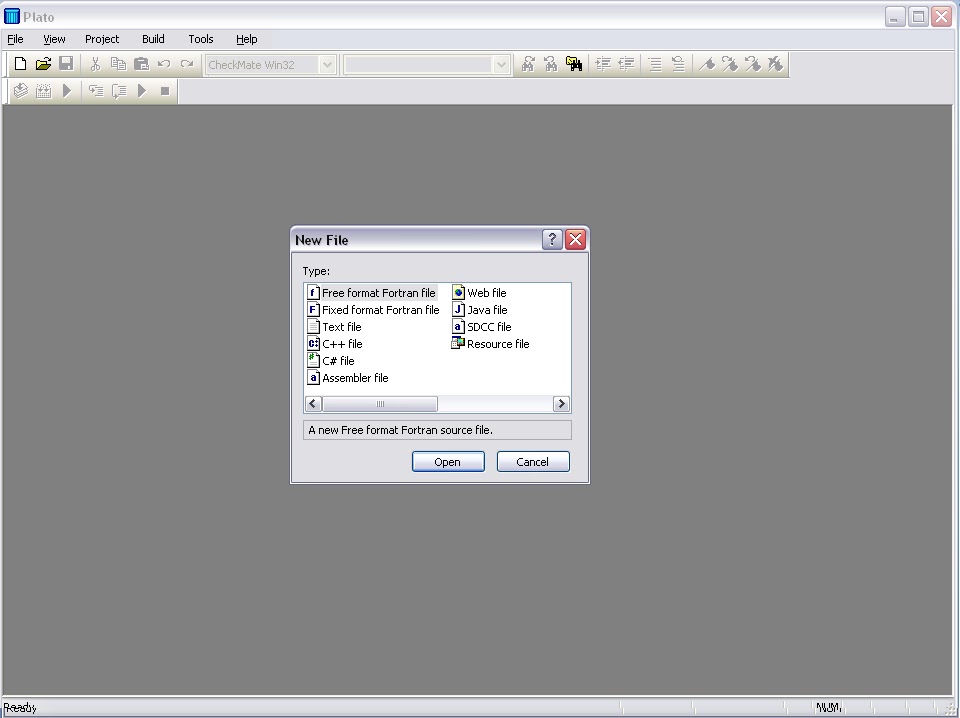
- Run PLATO IDE

- Go to file then click on new select FREE FORMAT FORTRAN FILE
5. Click open and a blank screen will appear.
6. Now type your program.
7. Click on compile button.
8. Now save your file.
9. Now click on start button.
10. A notice will appear click yes (appears some time) else go to next step.
11. A black window will appear displaying your output (it will take time so be patient).
Labels:
Computer
Saturday, 17 December 2011
How to make a simple virus
Make a virus that shutdown your computer (actually it is not a virus its a bat file)
1. Open notepad.
2. Type this "Shutdown -s -+5"
3. Now save it as "yourfilename.bat" for exmaple funnypic.bat (note that .bat is necessary)
4. Now make it something realistic.
5. Right click on your save file and create shortcut.
6. Right click on your shortcut file and go into properties.
7. Under the shortcut tab click on change icon and change to any icon.
Note this is only for educational purpose. Don't use it to harm anyone.
Make a never ending virus.
Warning it may cause your computer to crash, save all data before using
1. Open notepad.
2. Type this into notepad
:C
START %0
GOTO :C
1. Open notepad.
2. Type this "Shutdown -s -+5"
3. Now save it as "yourfilename.bat" for exmaple funnypic.bat (note that .bat is necessary)
4. Now make it something realistic.
5. Right click on your save file and create shortcut.
6. Right click on your shortcut file and go into properties.
7. Under the shortcut tab click on change icon and change to any icon.
Note this is only for educational purpose. Don't use it to harm anyone.
Make a never ending virus.
Warning it may cause your computer to crash, save all data before using
1. Open notepad.
2. Type this into notepad
:C
START %0
GOTO :C
3. Follow all the above steps.
or
Type "Start virus.bat" and save it with "virus.bat" name
Labels:
Computer
Thursday, 15 December 2011
Google Docs: How to use
You are working on a project or some report and you forget
to save it or your software crashes and closed without saving the file or your
hard disk or data storage device corrupted then google docs is one of the
online easy to use word, presentation and spreadsheet editor. Through google
docs many people can collaborate at a same time on a same project and you can
save your important work or project online securely. The best feature of the
google doc is that you can share and open your important documents from
anywhere around the world. The google docs can be use between students or
between teacher and students without any software, all you need is a internet
connection.
Many people prefer google docs as an alternative of
Microsoft office because it is easy to use online web-based office suite, it is
totally free and it can store data upto 1GB which can be access from anywhere.
However keeping your documents online is insecure and you have to always
connected to internet to create documents but without paying anything its
an best product online
HOW TO USE:
- Sign to into your Gmail account.
- From the top menu select documents.
- Now from the side panel ‘create new’.
- Select your desired worksheet from presentation, document, spreadsheet, form, drawing, collection.
- Suppose we select document.
- New window will open with a text editor like Microsoft word.
- After completing your work save the file from top with your desired name.
- Now if you want to share the file to any other Gmail user then click on the share button.
- Enter the email addresses then click ok.
- Your file is shared.
- Do this same for spreadsheet or presentation…..
How to make a website for beginners
Lets start with some basic knowledge
There are several sites on the web from where you can learn HTML easily. W3schools is one of the easiest way to learn. However different other websites are also present for example developphp.
After that type all your tags on a notepad or any other editor for example:
Following is an example of simple webpage:
<html>
<head>
<title>my first web page</title>
</head>
<body>
<h2>This is my first ever web page i created</h2>
</body>
</html>
Note: Save it with ".html" file format.
When you open this save file, the file will be open
Labels:
Computer
Subscribe to:
Posts (Atom)